Crosshairs
How to Import a CS2 Crosshair Code (Step by Step)
Import a CS2 crosshair code through Share or Import, check that it worked and fix invalid or unchanged crosshairs.
How to import a CS2 crosshair code
Copy the complete code beginning with CSGO-. In CS2, open Settings, choose Game and Crosshair, select Share or Import, paste the code and click Import. You do not need the developer console.
If you may want your current crosshair back, select Copy Your Code in the same window and save that code before completing the final step.
- Copy the complete code
Copy everything from CSGO- through the final group. Leave out quotation marks, spaces, commas and other punctuation.
- Open the Crosshair menu
Start CS2, select the Settings gear, choose Game and scroll to the Crosshair section.
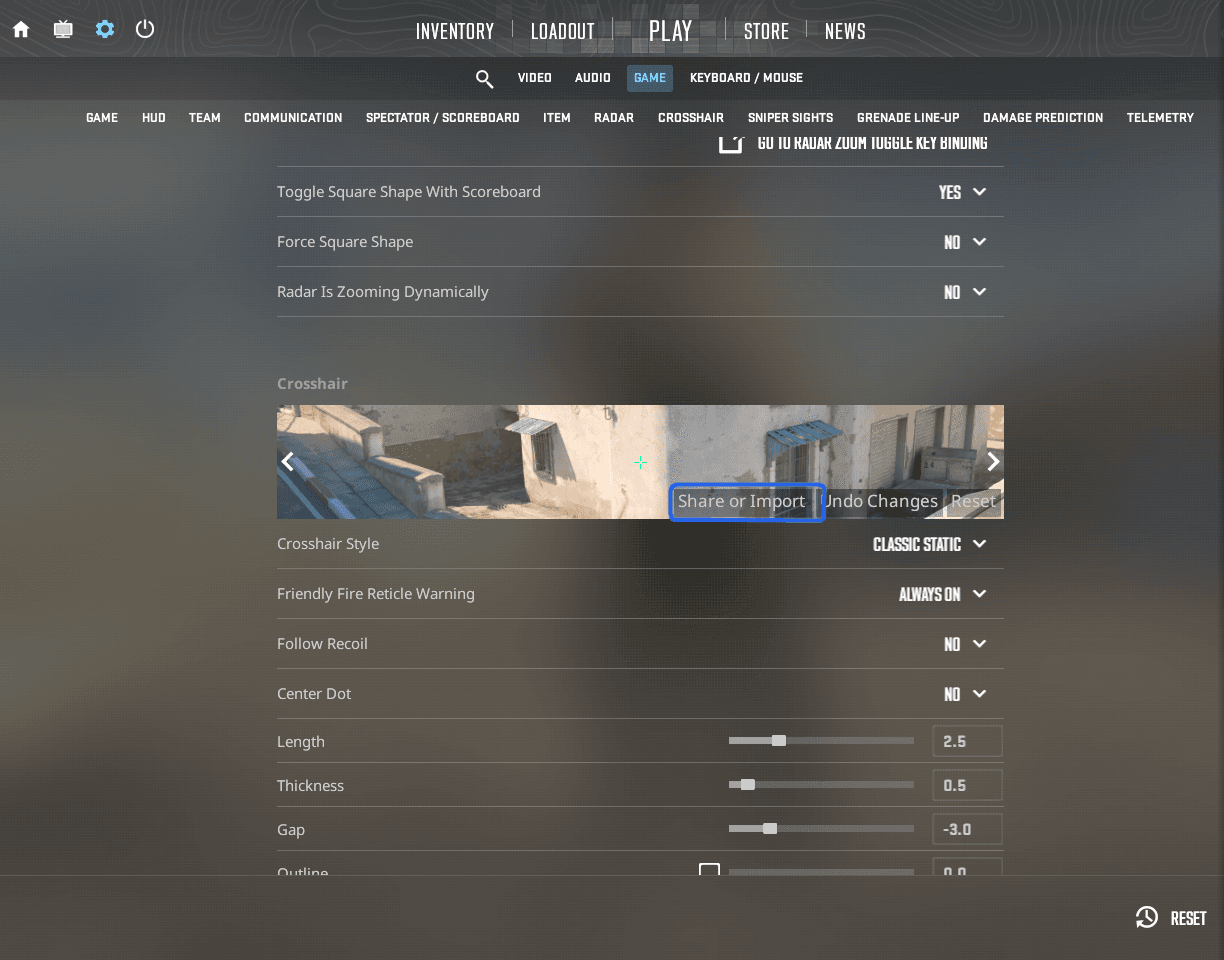
Open Settings, choose Game and find Share or Import beside the crosshair preview. - Select Share or Import
Click Share or Import to open the code window. This is the correct place for a complete CSGO- share code.
- Paste the code and import it
Paste the complete code into the field, select Import and check that the preview changes.
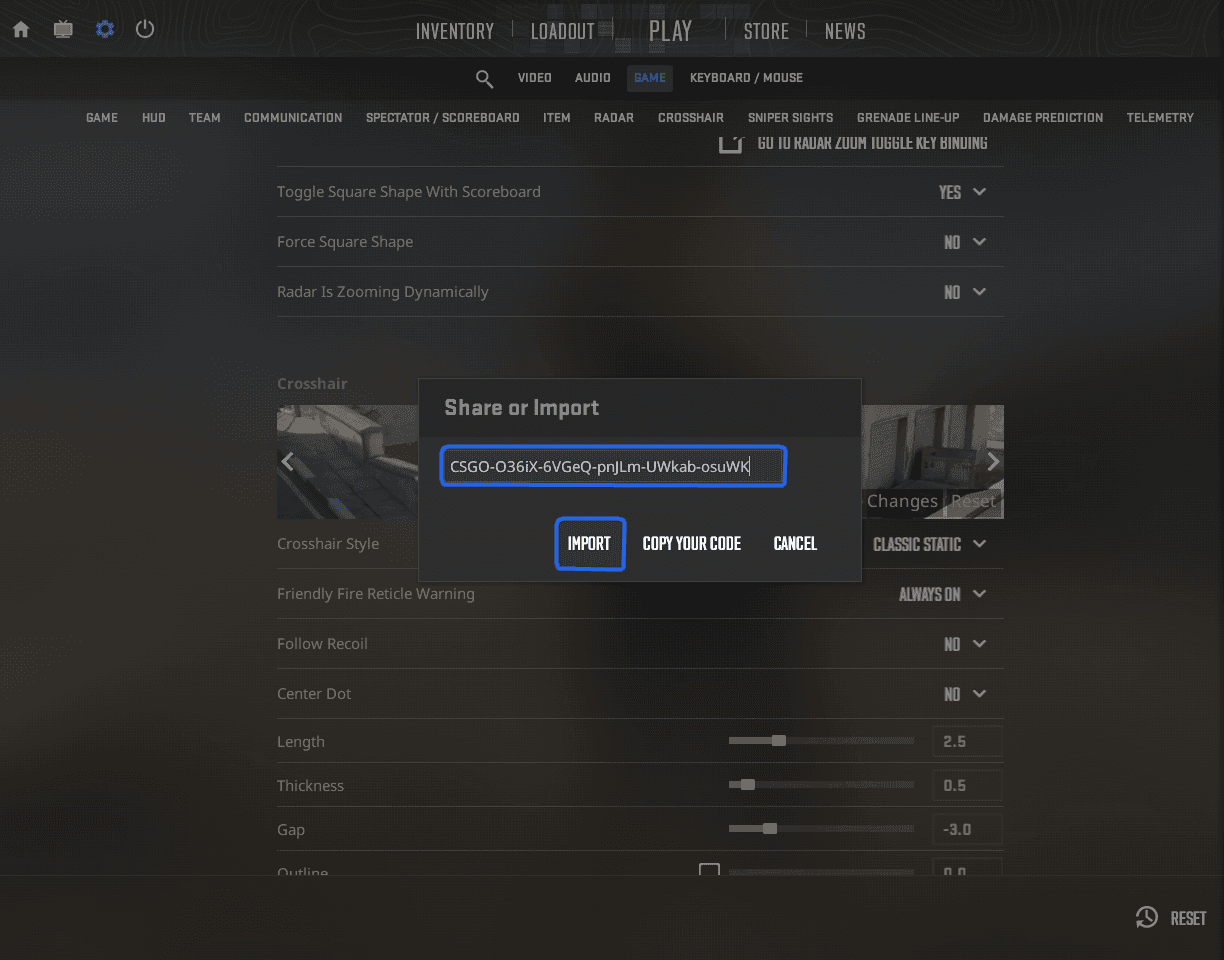
Paste the complete CSGO- code into the field and select Import.
How to check that the import worked
The Crosshair preview should change as soon as CS2 accepts the code. Close Settings, load a practice map and look at the crosshair against both bright and dark surfaces.
If the shape matches but appears larger or wider than a screenshot, the code may still be correct. Resolution and scaling affect its appearance. Compare your setup with the CS2 resolution guide.
Fix a CS2 crosshair code that will not import
Use the symptom below to find the most likely cause. Try the smallest fix first rather than changing unrelated CS2 settings.
- CS2 says the code is invalid
- Likely cause
Part of the code is missing, or the copied text includes a space, quotation mark or punctuation.
What to doCopy the original code again from CSGO- through the final group and paste only that code.
- Clicking Import does nothing
- Likely cause
The code was pasted into the wrong field, or the Crosshair menu did not update correctly.
What to doReopen Settings → Game → Crosshair → Share or Import. Paste the code again, then restart CS2 if the preview still does not change.
- The crosshair looks different
- Likely cause
Your resolution, aspect ratio, scaling mode or background differs from the reference image.
What to doCompare the actual size, gap and thickness values. Test the crosshair in game before deciding that the code is wrong.
- The code was pasted into the console
- Likely cause
The developer console accepts cl_crosshair commands, not complete CSGO- share codes.
What to doClose the console and paste the complete code into the Share or Import window instead.
How to save and restore your current crosshair
Open Share or Import and select Copy Your Code before testing a replacement. Save the copied code in a note with a name you will recognize. To restore it later, return to the same window, paste the backup and select Import.
Copy Your Code copies the crosshair currently active in CS2. It does not copy a different code that is waiting in the import field.
How to use individual crosshair commands
This optional method is only for command lines beginning with cl_crosshair. Open Settings, choose Game and set Enable Developer Console (~) to Yes. Open the console, paste the complete command line and press Enter.
- Enable the developer console
Under Settings → Game, set Enable Developer Console (~) to Yes.
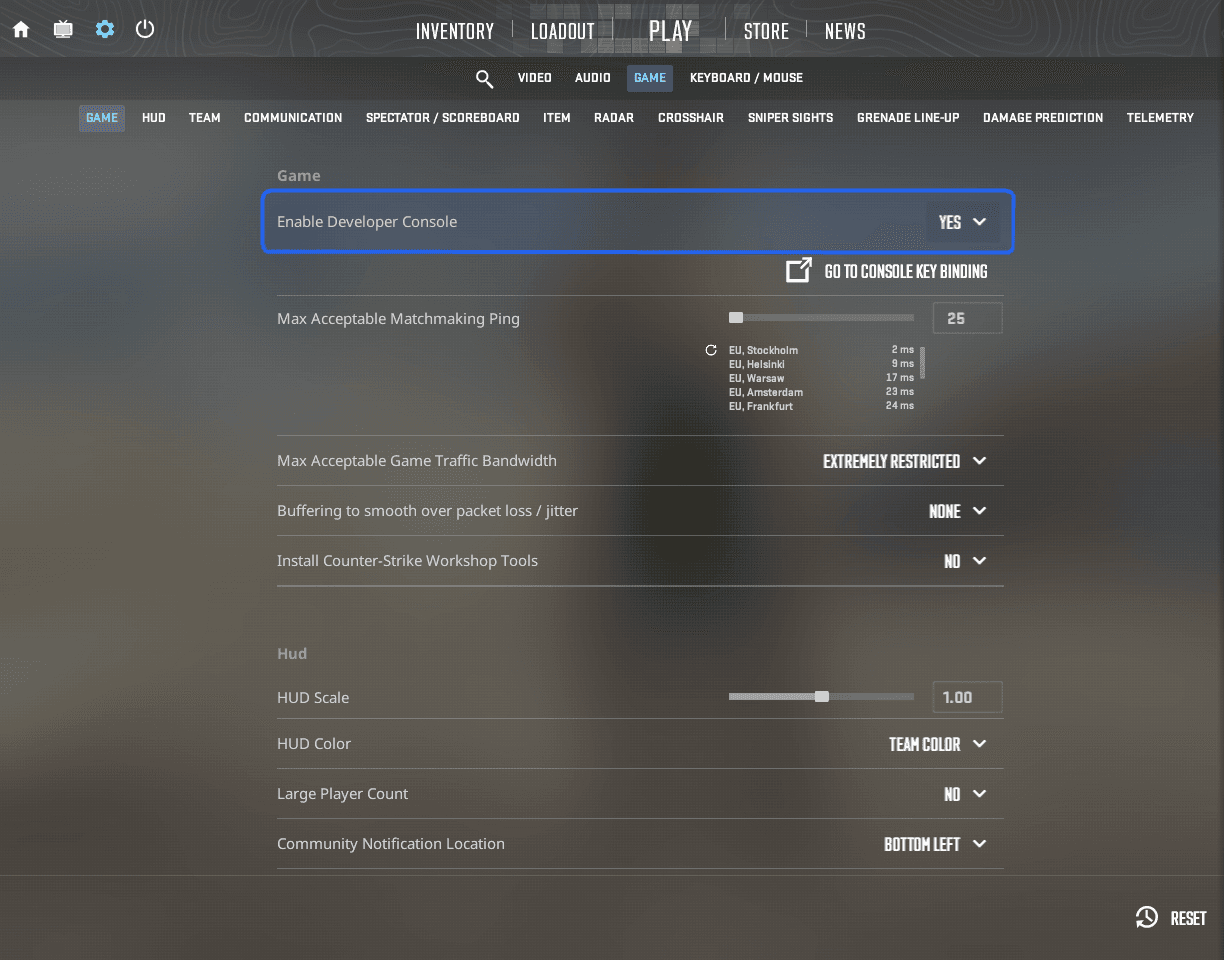
Enable the developer console only when you are using individual cl_crosshair commands. - Open the console
Press the key below Escape. On Swedish and other keyboard layouts it may display §, ` or another symbol.
- Paste the commands
Paste the complete semicolon-separated command line and press Enter once. The crosshair should update immediately.
Frequently asked questions
Where do I paste a CS2 crosshair code?
Open Settings, choose Game and Crosshair, select Share or Import, paste the complete CSGO- code into the field and click Import.
Do I need the CS2 console to import a crosshair code?
No. Use the Share or Import window for a complete CSGO- code. The developer console is only needed for individual cl_crosshair commands.
Does a crosshair code change sensitivity or keybinds?
No. A crosshair share code changes crosshair-related values and does not replace mouse sensitivity, viewmodel commands or keyboard bindings.
How do I restore my old crosshair?
Open Share or Import and paste the backup code you copied before testing the new crosshair.